
Get started
Five minutes is enough. The words in bold are the labels on your screen.
Your first five minutes
- Open Clavenzo. The first time, it makes your key. There is nothing to fill in.
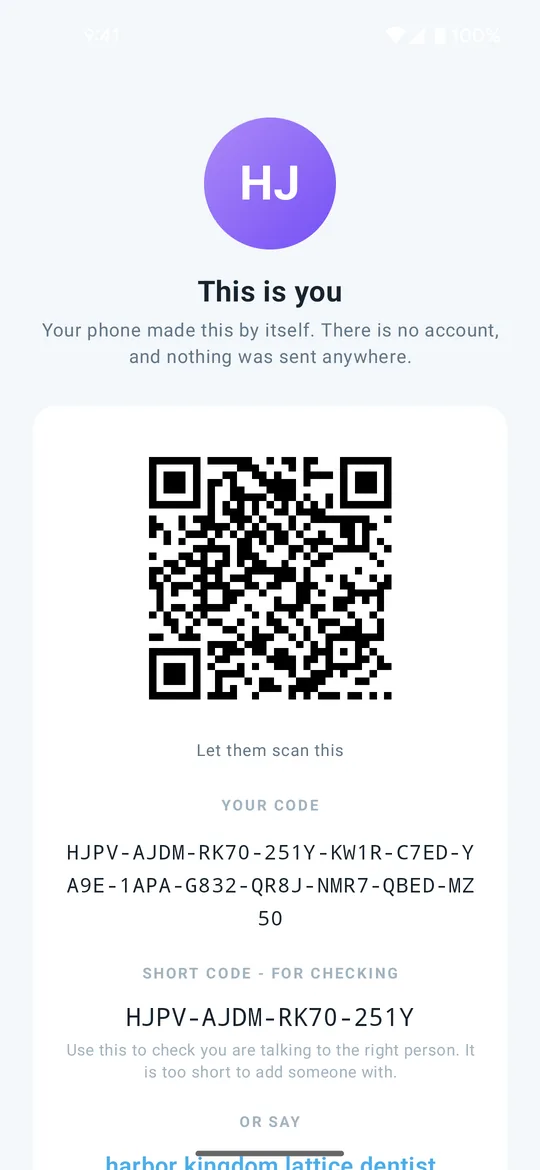
- Find your code. Tap your picture at the top of the home screen. This is you shows your QR code and, under Your code, the full code: 52 letters and digits in groups of four. The short code below it is only for checking who you are talking to; nobody can add you with it.
- Give it to someone. Best: let them scan your QR code with Clavenzo. Or tap Copy my code (on iPhone it opens the share sheet) and send the code in any message. It is not a secret: think of it as a phone number.
- Add someone. Tap Add someone on the home screen or under People. Tap Scan their QR code, or paste their code; the dashes are optional, and the counter shows when all 52 are there. Give them a name if you like, and tap Add. On a computer you can use the webcam, or drop in a picture of their QR code.
- Call, then check. Open the conversation and tap the call button. Once you are connected, read the four words under Safety check aloud to each other. If both screens show the same words, tap They match - remember that, and the contact is marked verified in person.
- Keep a way back. Export your identity and an encrypted backup now, while this phone works. The steps are below.
Calling on Wi-Fi with no internet
- Join the same Wi-Fi network or hotspot. It does not need to reach the internet.
- Check that Visible on this Wi-Fi is on in Settings, on both devices. It is on unless somebody turned it off.
- On Android, the person being called taps Ready to receive on the home screen. On iPhone, keep Clavenzo open; the first time, allow it to use the local network. On a computer, Clavenzo only needs to be running.
- Open the People tab: the other device appears under Nearby. Tap the call button beside it. On a computer, save them with a name first.
- Read the four safety words aloud, as on any call.
Moving to a new phone
- On the old phone, export your identity. Tap your picture, then, under Move to a new phone, tap Export identity. Unlock the phone, write down the transfer code it shows once, and save the file.
- Export a backup too. In Settings, under Your data, tap Export. Write down the backup code and save the file. The backup holds conversations, photos, call history and contacts; the identity export holds only your key.
- Move both files to the new phone, by cable, a memory card or a cloud you trust. Keep the two codes somewhere else: a file and its code in one place is one thing to lose.
- On the new phone, import the identity first. Install Clavenzo, tap your picture, then Import identity, and enter the transfer code. Clavenzo closes; open it again and it answers as you.
- Then import the backup. In Settings, under Your data, tap Import and enter the backup code. It adds what is missing and never overwrites anything.