
Every button, explained
Clavenzo has no manual inside it, so here is one. Every label below is the exact text the app shows in this language. It is read from the app's own translation files each time this page is built, so it always matches the app.
On a call
The screen you spend the most time on, and the one worth knowing by heart.
-
Answer
Picks up. The identity of the caller is proved as the call connects, which is why the app can let you answer before knowing who it is.
When you see it An incoming call, on the screen and in the notification.
-
Decline
Refuses the call. The caller is told you declined, rather than being left ringing.
When you see it An incoming call.
-
 End call
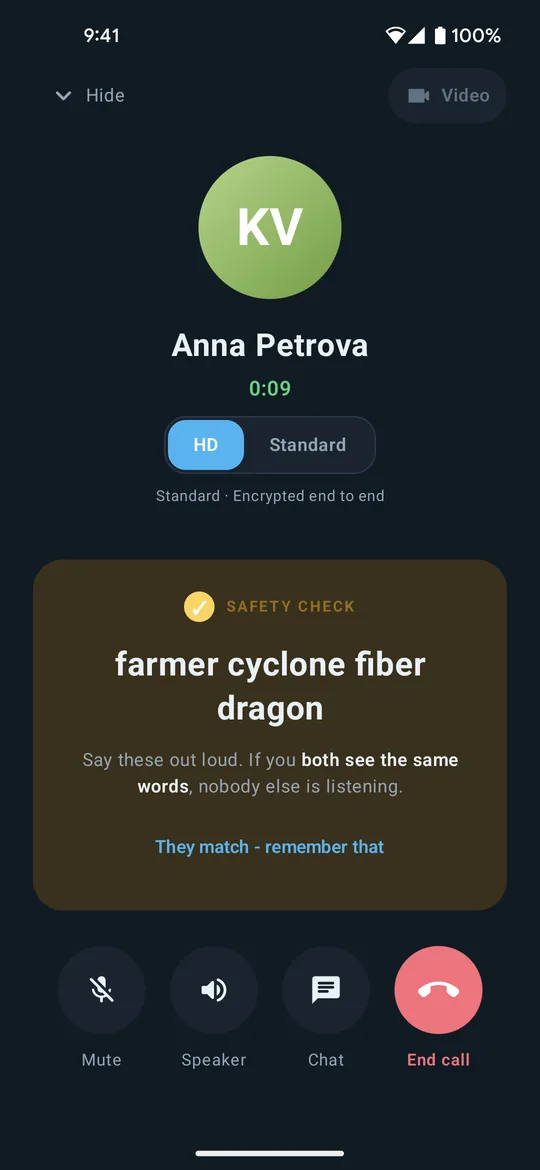
Hangs up. Both phones destroy the call's keys immediately.
When you see it Any call in progress or connecting.
-
 Mute
MuteStops your microphone. Nothing leaves your phone while mute is on. It really cuts the sound; it does not just ask the other side to ignore you.
When you see it Any connected call.
-
 Speaker
Moves the sound to the loudspeaker. Tapping again cycles back through earpiece, headset or headphones, whichever is attached.
When you see it Any connected call.
-
 Video
VideoTurns your camera on and asks the other person to accept it. Video only works when the call goes straight between the two phones; on a relayed call the button explains why it is unavailable rather than failing silently.
When you see it A connected, direct call.
-
Switch camera
Swaps between the front and back camera.
When you see it While your camera is on.
-
Full screen
Gives the other person's picture the whole screen. The controls fade and come back on a tap.
When you see it While video is running.
-
 Chat
ChatOpens the conversation with this person without ending the call.
When you see it Any connected call.
-
 Hide
HideLeaves the call screen with the call still running. A bar at the top of the app brings you back.
When you see it Any call in progress.
-
They match - remember that
Records that the four safety words matched, so this person is marked verified from now on. It only has to be done once per person, and it survives.
When you see it Under the safety words, on a connected call.
-
HD
Two choices on the call screen: HD and Standard. HD gives clearer sound whenever the call goes straight between the phones and the connection can carry it; Standard keeps this one call at the lowest data use. The line under them says which the call is actually using, and that it is encrypted end to end either way.
When you see it A connected call.
The safety check
Not a button so much as the most important thing on the screen.
-
 SAFETY CHECK
Four words, derived from the key the two phones actually agreed on. Both people see the same four words if, and only if, nobody is sitting in the middle of the call. Read them aloud. This is the one check that no certificate authority and no company can do for you.
When you see it Every connected call, until you mark the person verified.
-
 Direct
A green dot: this call is going straight to the other phone, with no server in the path.
When you see it On the call screen, if you switched the routing light on in Settings.
-
Via server
A red dot: a server is passing this call along. It is not a warning. The call is encrypted end to end either way, and the server carries data it cannot read. It only means the two phones could not reach each other directly.
When you see it On the call screen, if you switched the routing light on in Settings.
In a conversation
-
 Send
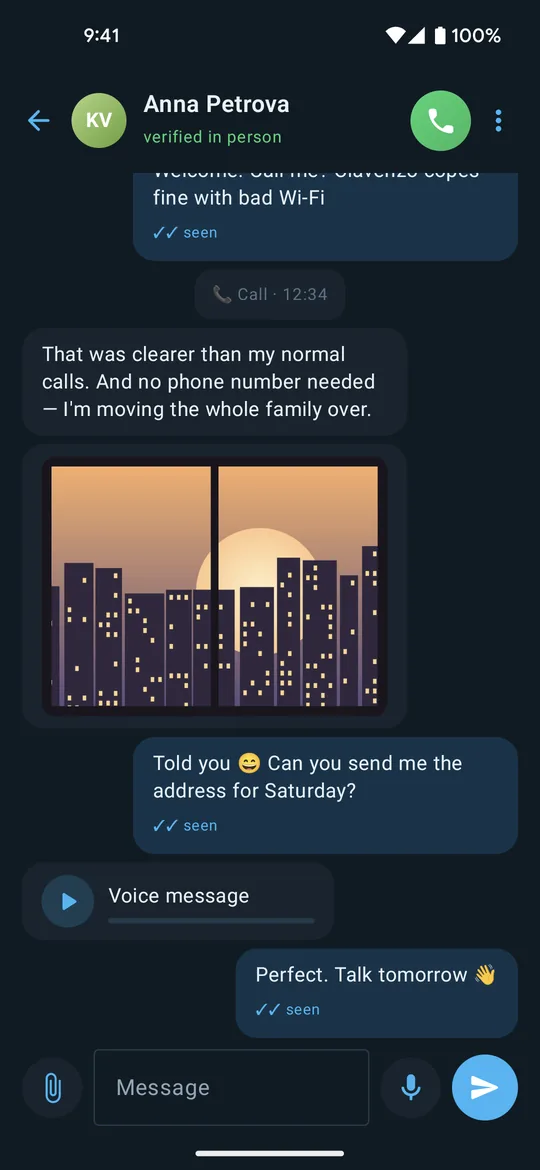
SendSends the message. The tick underneath tells you what happened to it: sending, sent, delivered, or seen.
When you see it Once there is something to send.
-
 Send a photo
Opens the send sheet: a photo from the gallery, a photo taken now, any file on the phone, or your location. All of it travels on the same encrypted channel as the messages.
When you see it At the start of the message box.
-
Photo
Sends a picture from your gallery.
When you see it The attach button in a conversation.
-
Take a photo
Takes a photo now and sends it.
When you see it The attach button in a conversation.
-
File
Sends any file on the phone. Files over 1 MB travel phone to phone only and will wait for a direct connection rather than pass through a server.
When you see it The attach button in a conversation.
-
Share my location
Shares where you are, once, deliberately. Clavenzo has no continuous location sharing and no live track.
When you see it The attach button in a conversation.
-
 Hold to record a voice message
Hold it to record a voice message and let go to send. Slide away while holding to cancel.
When you see it The microphone in a conversation, when the message box is empty.
-
Disappearing messages
Sets new messages in this conversation to disappear from both phones after a time you choose. Yours count down from when you send; theirs from when they read. It cannot stop somebody photographing the screen, and the app says so.
When you see it The menu at the top of a conversation.
-
 More options
Opens the conversation's own menu: the disappearing-messages timer, and blocking the person.
When you see it Top right of a conversation. Top left in Arabic and Urdu, where the whole layout is mirrored.
-
Hold to save
Copies a received photo or file out of Clavenzo and into the phone's Downloads. Until you do this it stays inside the app.
When you see it Hold any received photo or file.
-
Forward
Sends the message on to up to five other conversations. The copy is marked as forwarded.
When you see it Hold a message.
-
Delete for both
Removes the message from their phone as well as yours. It works because you sent it and you are still connected. It is a request between two devices, not control anyone has over the other person's phone.
When you see it Hold a message you sent.
-
Delete for me
Removes the message from this phone only. Their copy stays.
When you see it Hold any message.
-
Accept
Accepts a message request from somebody not in your contacts. Until you do, they are not told that their messages arrived or were read.
When you see it A conversation with somebody you have not saved.
-
Block
Blocks them. They cannot call or message you afterwards, and they are not told.
When you see it A message request, or the menu in any conversation.
The home screen
-
 Call
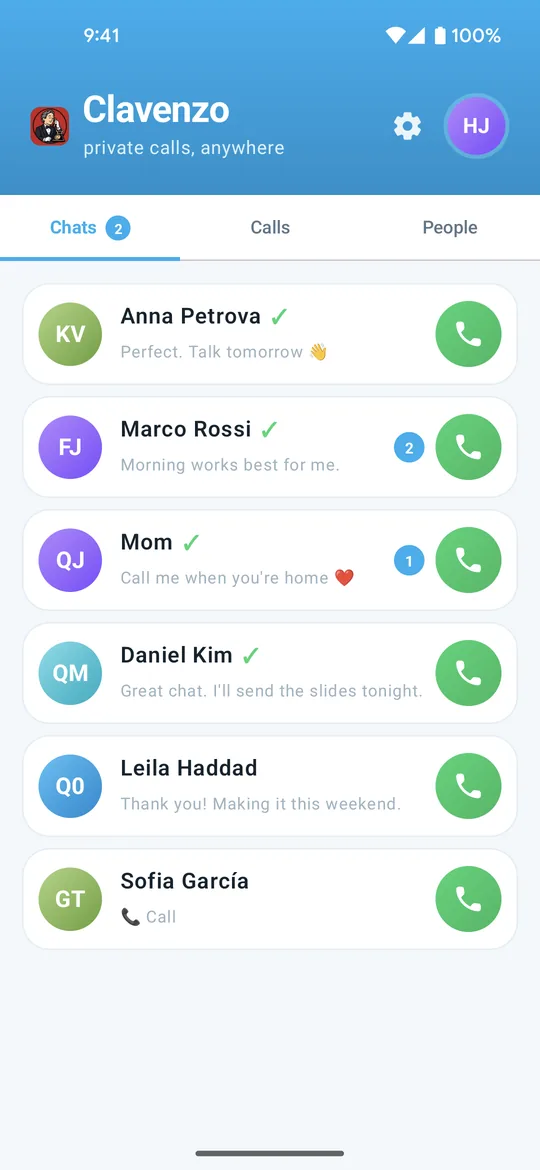
CallPlaces the call. It goes straight to their phone where the two networks allow it and through a relay where they do not; either way it is encrypted end to end before it leaves.
When you see it On every row of the home screen, and at the top of a conversation.
-
Chats
Your conversations, most recent first.
When you see it Always.
-
Calls
Call history, split into missed, received and dialled.
When you see it Always.
-
People
The people you have saved, and anybody discoverable on the same Wi-Fi under Nearby.
When you see it Always.
-
 Add someone
Adds somebody by their 16-character code, by pasting it, or by scanning their QR code.
When you see it The home screen and the People tab.
-
Scan their QR code
Opens the camera to scan somebody's QR code. This is the safest way to exchange codes: nothing passes through a third app that could alter it in transit.
When you see it While adding somebody.
-
Copy my code
Copies your own code so you can send it to somebody.
When you see it Your identity screen.
-
 Ready to receive
Keeps the app listening so people on this Wi-Fi can reach you while it is open.
When you see it The home screen, when local discovery is available.
Settings worth knowing about
Most of these start off, or at their safest value. Visible on this Wi-Fi starts on.
-
App lock
Asks for the phone's PIN, pattern or fingerprint when you come back to Clavenzo, after a delay you choose. Calls still ring and can be answered.
When you see it Settings, under Privacy.
-
Screen security
On Android, blocks screenshots and screen recording of the app and hides its contents in the recent-apps switcher. On iPhone, hides its contents in the app switcher.
When you see it Settings, under Privacy.
-
Incognito keyboard
Asks your keyboard not to learn from what you type in messages. Some keyboards ignore the request, which is why it is described as a request.
When you see it Settings, under Privacy. Android only: iPhone gives apps no such request to make.
-
Send read receipts
Turns the 'seen' marks off in both directions at once. You cannot hide yours while still seeing theirs.
When you see it Settings, under Privacy.
-
Silence calls from unsaved people
Calls from people you have not saved do not ring. They still appear as missed calls you can return.
When you see it Settings.
-
Show message text
Off (recommended): a notification says only that something arrived. On: it shows who wrote and what they said, including on the lock screen.
When you see it Settings, under Notifications.
-
Visible on this Wi-Fi
Whether people on the same Wi-Fi can see this phone under Nearby and call it without adding you first. It is on until you turn it off, and it announces your address to devices on that network. Turning it off hides you locally; calls over the internet still work.
When you see it Settings.
-
Show call routing light
Puts the small green or red routing light on the call screen.
When you see it Settings.
-
Call quality
Auto HD lets a direct call on a good connection switch to clearer sound. Data saver keeps every call at standard quality for the least data.
When you see it Settings.
-
LANGUAGE
Clavenzo follows the phone's language and lets you override it here, in any of the eleven it speaks.
When you see it Settings.
-
Export
Writes your conversations, photos, call history and contacts to one encrypted file, with a code shown once and stored nowhere.
When you see it Settings, under Your data.
-
Export identity
Seals the key that is your address into a file that opens only with a one-time transfer code. The only way that key ever leaves the phone.
When you see it Settings, under Move to a new phone.
The few real differences between the platforms
Waking up for a call
Android may put a sleeping app aside so firmly that it cannot be woken; the app detects this and offers a one-tap fix. iPhone handles it through the system's own call interface and rarely needs anything.
Full-screen incoming calls
On Android, a call showing itself over the lock screen needs a full-screen-notification permission, and the app prompts for it. On iPhone this is the system behaviour.
Saving files
Android saves to Downloads. iPhone offers the share sheet and the Files app.
Back
Android uses the system back gesture or key; iPhone uses the back button in the top corner and the edge swipe.